 GG Transcript
Voice Typing in Google Docs with a Chrome Extension
Speak the first draft in the browser, then use a deliberate editing pass to turn natural language into writing you are ready to share.
 Harry Vu Le
Learn how to use a voice typing Chrome extension with Google Docs to capture ideas, clean drafts, and keep your writing accurate.
Why use voice typing in Google Docs?
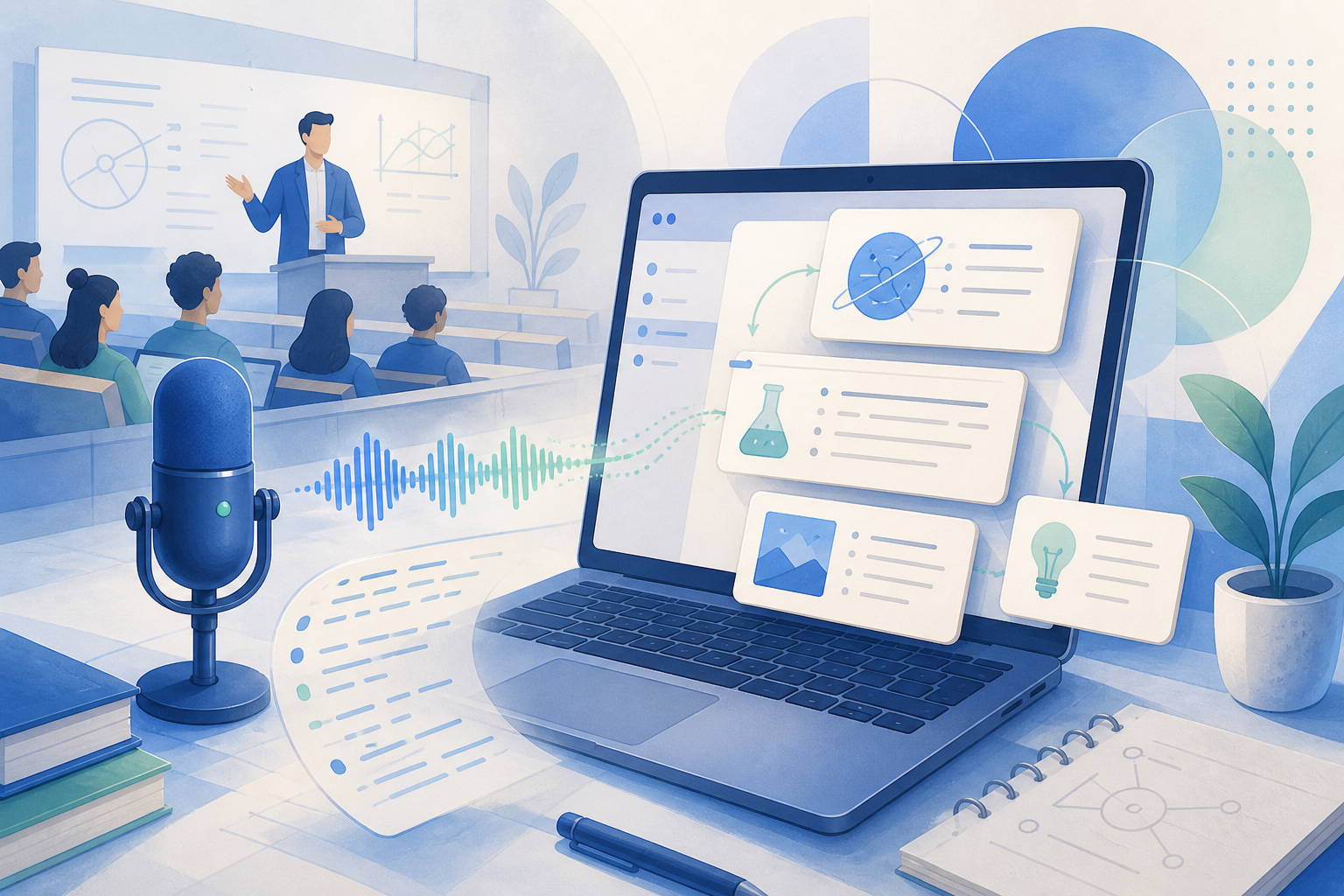
Voice typing can help when your ideas move faster than your hands or when a first draft feels difficult to begin. A Chrome extension lets you speak a project outline, email, reflection, or research idea while Google Docs remains the place where you edit and share the finished document. Speaking naturally can preserve momentum and expose the shape of an idea before you worry about perfect sentences.
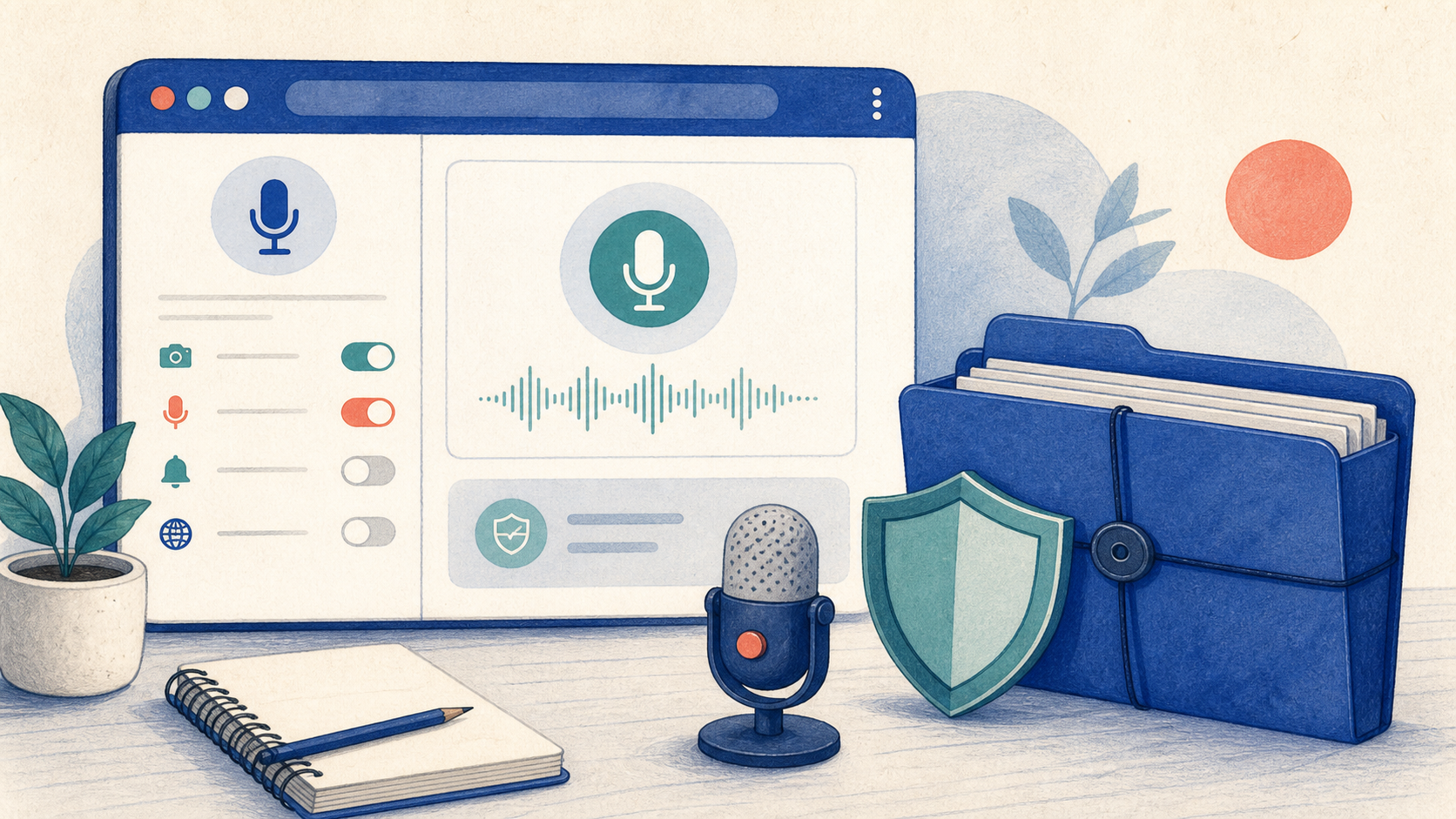
Capture and editing work best as separate stages. The first transcript may include repetition, false starts, and punctuation errors. That is acceptable during capture; the goal is to preserve meaning. Keep confidential information out of recordings unless your approved workflow allows it, and tell other people when microphone access is active.
Build a reliable Google Docs voice workflow
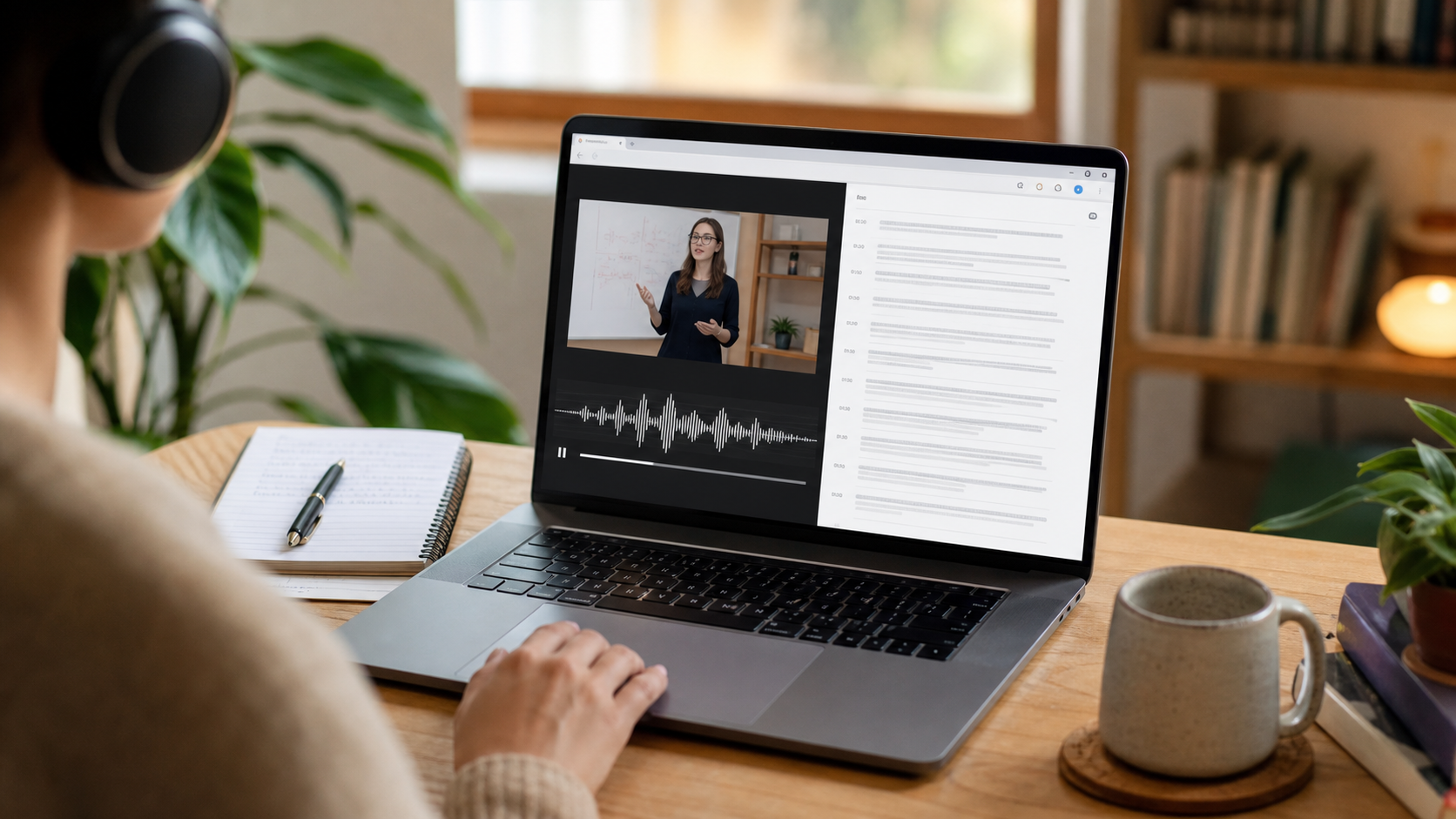
Open the document and GG Transcript side by side. Select the spoken language, confirm the microphone, and record a short test phrase that includes a proper name or technical term. If the test is clear, dictate the main idea in short sections. Pause between topics so the transcript has natural boundaries, then stop recording before you begin substantial editing.
Use a curated transcript or focused AI output to remove verbal filler, but keep the raw text available for comparison. Ask for one transformation at a time—for example, 'turn this into a three-part outline and keep my first-person voice.' Narrow instructions reduce invented details and make the result easier to review inside Google Docs.
Edit the spoken draft before sharing
Read the draft as a reader who did not hear the original recording. Check names, links, numbers, claims, and promises, then remove sentences you no longer mean. If Gemini makes the writing smoother but changes your intent, restore the source wording or adjust the instruction. The point of AI cleanup is to reduce mechanical editing, not to replace your judgment or voice.
Save the transcript and final document with descriptive names so you can find them later. Export only when you need a separate copy, and delete duplicate recordings when the work is complete. This voice typing Google Docs workflow combines fast capture with a clear editorial checkpoint, giving you speed without losing accuracy or ownership.
Keep Google Docs as the editorial finish line
A voice typing workflow is easier to trust when the browser document remains the final place for human editing. After capture, compare the cleaned output with your transcript, preserve sentences that carry your voice, and check links, names, and numbers before sharing. Use headings and short paragraphs so the document can be scanned by someone who never heard the recording. The extension should remove typing friction while Google Docs remains the place where you decide what is ready.
For recurring work, save a small prompt template for a project update, lesson reflection, or follow-up email. Keep instructions specific and avoid asking the AI to invent missing context. Store a descriptive title and delete duplicate recordings when the draft is complete. This process gives voice typing Google Docs users a fast start, a clear review checkpoint, and writing that remains accountable to its author.
A dependable routine for real work
The most useful way to apply voice typing in google docs with a chrome extension is to keep the workflow small and observable. Start with a short test, confirm that the words on screen match the speaker, and decide what the final reader actually needs. A raw transcript, cleaned copy, summary, table, or question-and-answer page each serves a different purpose. Choosing one outcome before you process a long recording saves time and makes quality easier to judge.
Keep a human checkpoint between recognition and action. Listen again when a name, number, quotation, deadline, or safety instruction matters. Mark uncertainty instead of allowing a fluent sentence to hide it, and compare an AI-created result with the source before publishing or sending it. Automatic tools are excellent at reducing repetitive work, but they cannot know which detail is most consequential in your context.
A clear archive also improves future work. Use descriptive titles, the spoken language, and the project or course name so search can surface the right conversation months later. Store links to related documents when audio cannot preserve a diagram, screen, or formula. Delete temporary exports and old copies when they no longer serve the task, especially when the material contains information about other people.
Finally, review the result with the person who will use it. Ask whether the summary answers the question, whether actions have real owners, and whether the tone fits the audience. Feed that feedback into the next custom instruction rather than adding more words by default. A repeatable capture–review–share loop is what turns speech-to-text into dependable work.
Use a lightweight revision pass before sharing
Before a dictated Google Docs draft leaves your workspace, make one purposeful revision pass. Read headings first to check whether the document has a clear order, then read the opening and closing sentences to make sure they state the right purpose and next step. Finally, verify names, links, dates, and numbers against your source. Voice typing can get words onto the page quickly; this short pass is what turns a spoken draft into a document another person can act on with confidence.
When collaborating, leave comments where context is missing instead of asking an AI tool to guess. Keep the transcript available when wording matters, but let the shared document carry only the finished version that the audience needs. A small, repeatable review routine protects the writer’s voice, makes edits easier for collaborators to understand, and prevents a convenient draft from becoming an unexamined final answer.
Put the workflow into practice
Open GG Transcript in Chrome, choose the input and language that fit your task, and begin with a short test recording. Read the step-by-step setup guide, compare plan features, and review the Privacy Policy before recording sensitive material.
Add GG Transcript to Chrome→