 GG Transcript
Chrome Audio Transcription for Browser Audio and Video
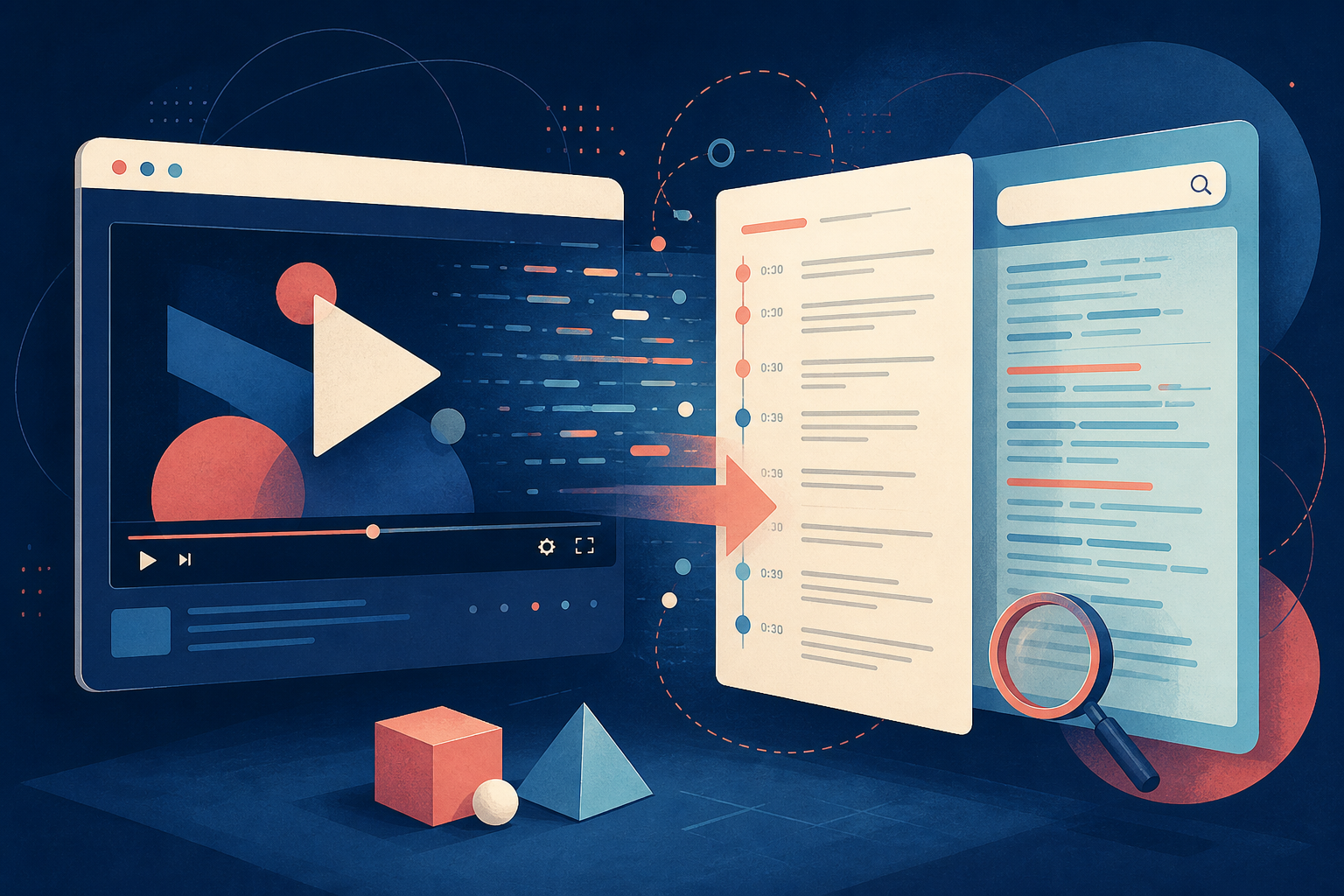
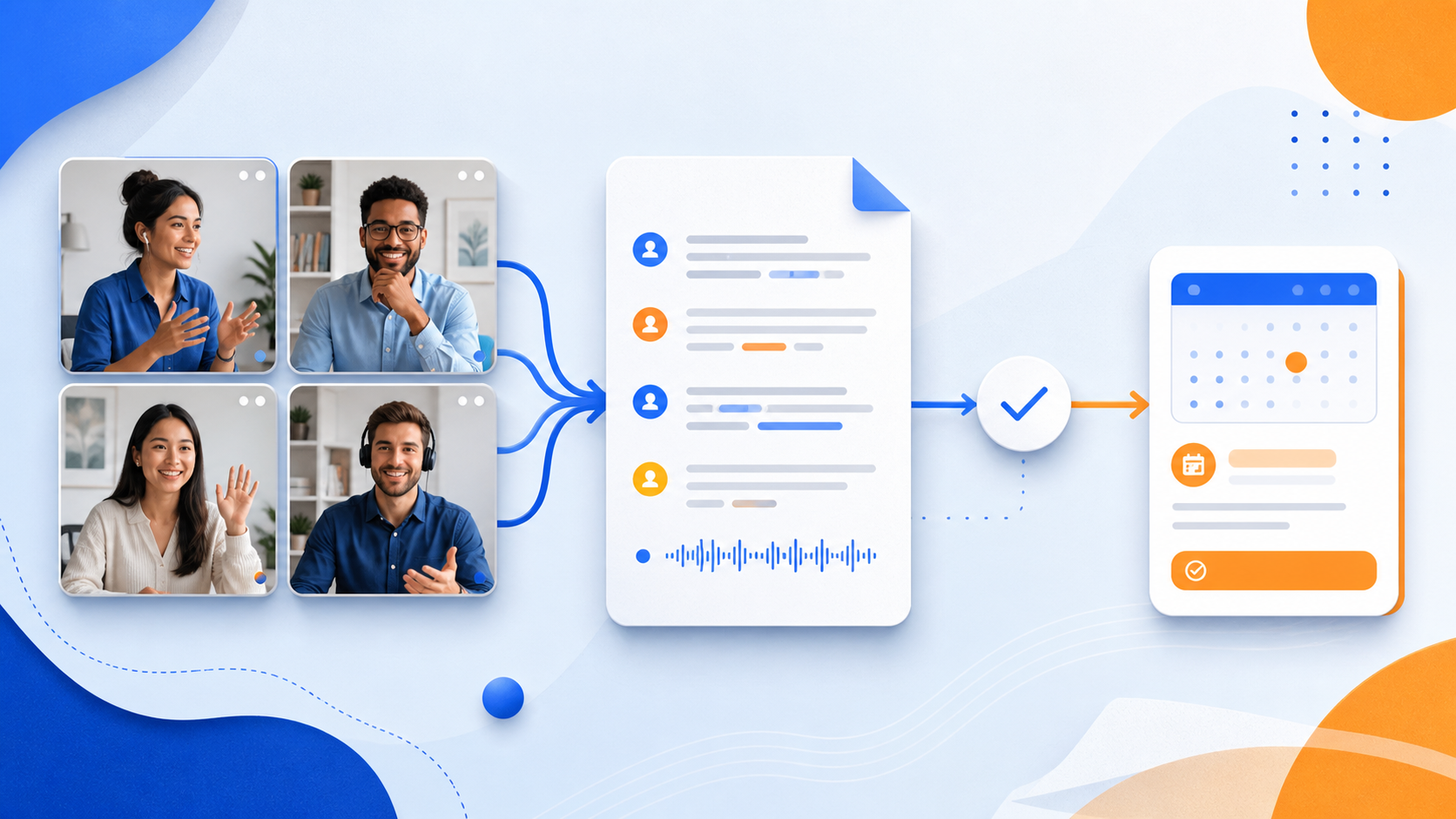
Turn permitted browser audio, video, webinars, and online lessons into searchable text without losing the source context.
 Harry Vu Le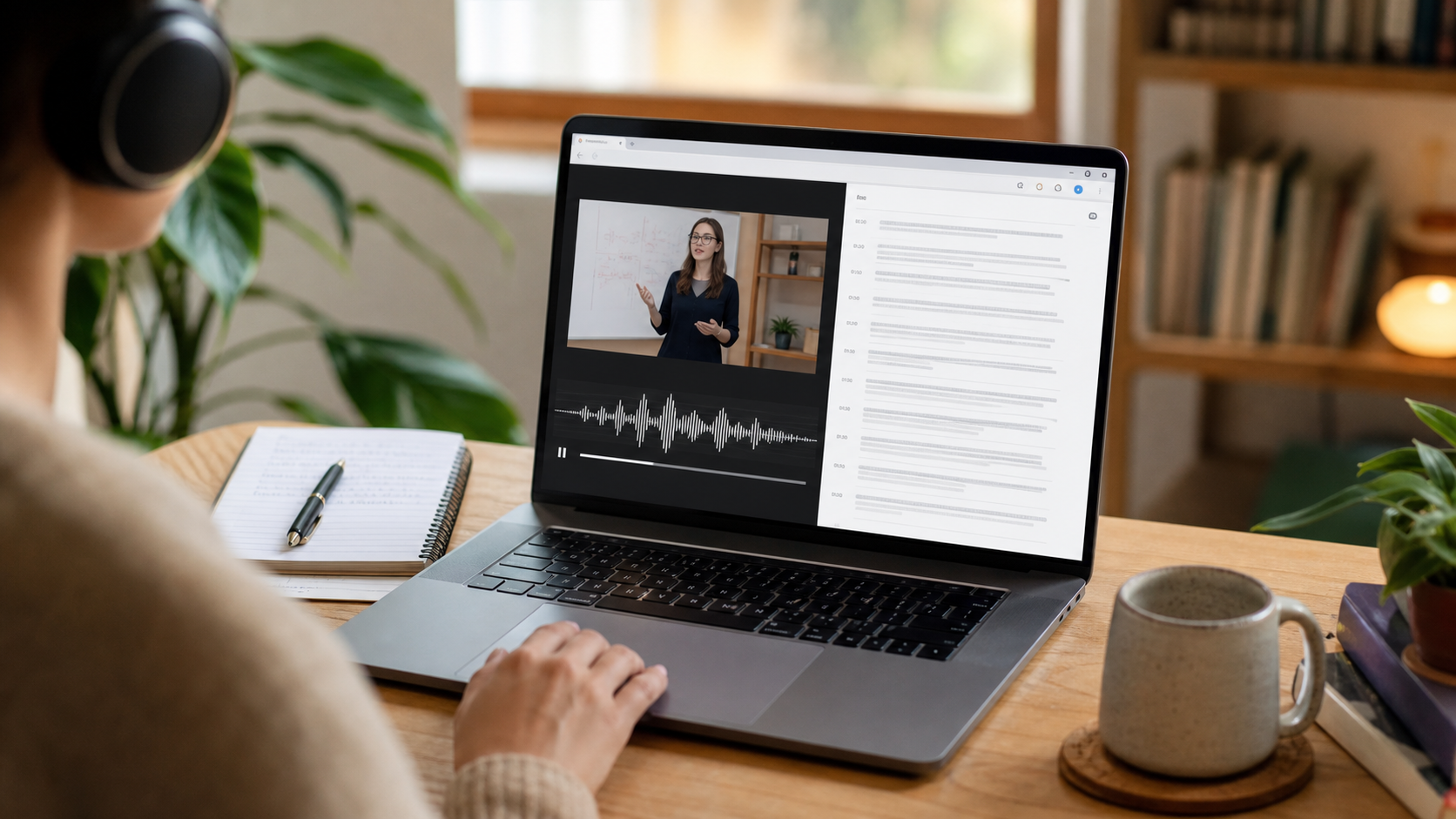
Learn how to transcribe browser audio and video with a Chrome extension, test the correct audio source, improve accuracy, and save searchable text.
What Chrome audio transcription actually requires
Chrome audio transcription starts with an extension receiving an audio source that contains the speech you want to capture. Depending on your setup, that may be a microphone near the speakers, a selected input device, or an extension-supported capture flow. Giving microphone permission does not automatically mean every tab's internal audio is available. Test a short sample first and watch the input indicator before you transcribe a long browser video, webinar, or lesson.
Use browser audio transcription only when you have permission to record or process the material. Private meetings, paid courses, and copyrighted videos may have rules that differ from public content. A transcript is also not guaranteed to be perfect: overlapping speakers, music, low volume, and compressed audio can reduce accuracy. Clear speech and a stable source matter more than the length of the recording.
A reliable Chrome transcription workflow
Open the media you want to use, then launch GG Transcript from the popup, sidebar, or web display. Select the language that matches the speaker and confirm your transcription engine. Record ten to twenty seconds, stop, and review the result. If the text is empty or inaccurate, change the input, raise the playback volume slightly, reduce background noise, and repeat the test before continuing.
For live monitoring, WebSpeech can show words as speech is recognized. For supported complete-file processing, Deepgram can analyze the finished recording after you stop. Do not close the extension while a final transcript is being created. Once processing is complete, rename the result with the source and topic so it remains easy to find in history.
Make the browser transcript useful
Review the transcript alongside the original browser content. Correct names, numbers, product terms, and quotations before relying on them. Add timestamps or section labels when the source changes topic. If you generate a summary or notes, compare the output with the transcript rather than assuming the AI captured every nuance.
The most useful browser-audio workflow ends with a clear purpose: meeting notes, a study outline, an action list, or a searchable reference. Delete recordings you do not need, keep sensitive content in the appropriate storage location, and follow the source owner's sharing rules. That turns transcription from passive collection into a responsible, repeatable research process.
Troubleshoot empty or inaccurate browser transcripts
When a browser transcript is empty, first confirm that the audio meter responds. If it does not, the extension is listening to the wrong input or Chrome has not granted microphone access. If the meter moves but words remain inaccurate, lower competing background sound, check that the selected language matches the speaker, and repeat a short sample. Internal tab audio and microphone audio are not interchangeable, so do not assume a video playing in a tab will automatically reach a microphone-based capture flow. Testing the exact source is faster than changing several unrelated settings at once.
Accuracy also depends on how the source was produced. A webinar with one close microphone will usually transcribe more clearly than a panel with distant speakers and music. Keep uncertain phrases marked instead of silently guessing. For research or publishing, return to the source and verify quotations, names, figures, and product claims. The transcript is most useful as a navigation layer: it helps you locate the relevant moment quickly, while the original recording remains the authority for details that matter.
A reliable browser-audio workflow
Start with a short, representative sample from the actual source. Confirm that the language, microphone route, and transcription model match the recording before processing a long session. Keep headphones or speakers at a stable volume and avoid simultaneously playing unrelated audio. When the transcript contains repeated errors, change one variable at a time—input source, language, distance, or background noise—so you can identify what actually improves recognition.
Use descriptive titles and save the source URL alongside the transcript when the material will be revisited. If you create a summary, treat it as a working note and preserve a path back to the original recording. This makes quotations and precise claims verifiable while still giving you fast search, copy, and AI-assisted organization.
A dependable routine for real work
The most useful way to apply chrome audio transcription for browser audio and video is to keep the workflow small and observable. Start with a short test, confirm that the words on screen match the speaker, and decide what the final reader actually needs. A raw transcript, cleaned copy, summary, table, or question-and-answer page each serves a different purpose. Choosing one outcome before you process a long recording saves time and makes quality easier to judge.
Keep a human checkpoint between recognition and action. Listen again when a name, number, quotation, deadline, or safety instruction matters. Mark uncertainty instead of allowing a fluent sentence to hide it, and compare an AI-created result with the source before publishing or sending it. Automatic tools are excellent at reducing repetitive work, but they cannot know which detail is most consequential in your context.
A clear archive also improves future work. Use descriptive titles, the spoken language, and the project or course name so search can surface the right conversation months later. Store links to related documents when audio cannot preserve a diagram, screen, or formula. Delete temporary exports and old copies when they no longer serve the task, especially when the material contains information about other people.
Finally, review the result with the person who will use it. Ask whether the summary answers the question, whether actions have real owners, and whether the tone fits the audience. Feed that feedback into the next custom instruction rather than adding more words by default. A repeatable capture–review–share loop is what turns speech-to-text into dependable work.
Put the workflow into practice
Open GG Transcript in Chrome, choose the input and language that fit your task, and begin with a short test recording. Read the step-by-step setup guide, compare plan features, and review the Privacy Policy before recording sensitive material.
Add GG Transcript to Chrome→