 GG Transcript
Speech-to-Text Chrome Extension for Online Classes
Online lessons move quickly. A thoughtful transcript workflow helps you stay present during class and return to the exact explanation when you study later.
 Harry Vu Le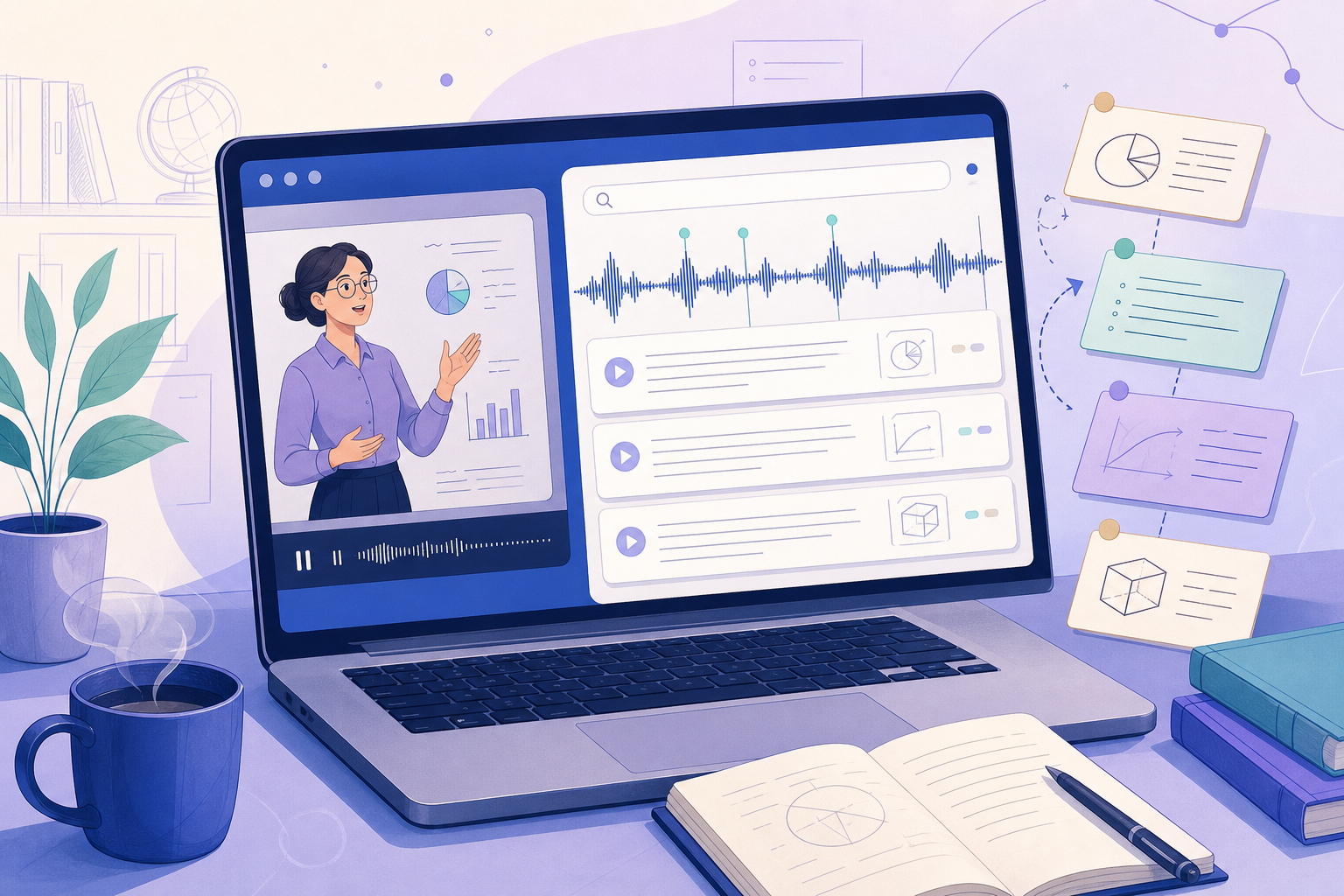
Learn how to use a speech-to-text Chrome extension for online classes, capture clear lesson transcripts, and turn class discussion into useful notes.
Why online classes benefit from live transcription
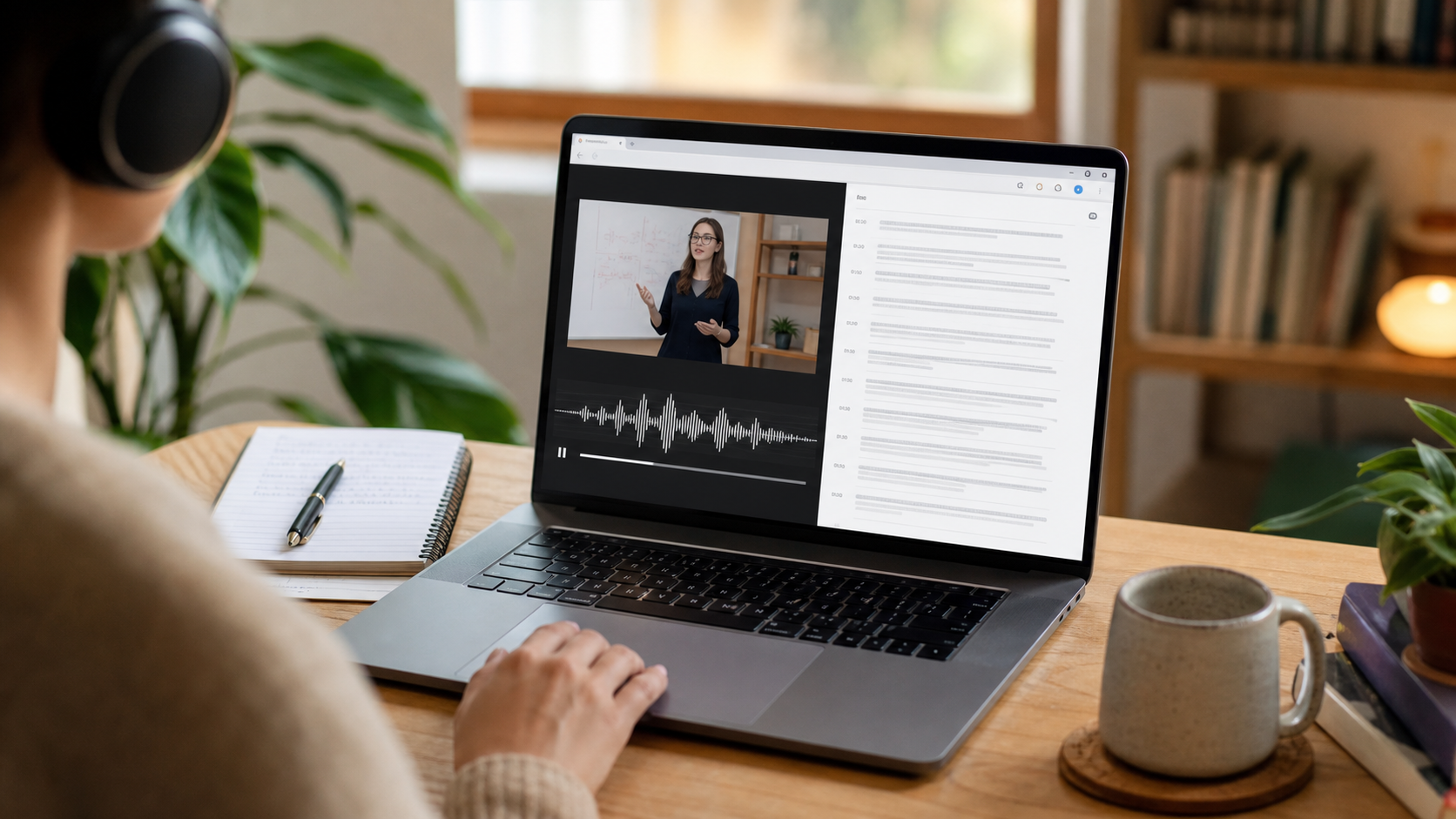
An online class combines spoken explanation, slides, chat messages, and questions from several people. Trying to type every sentence can pull attention away from the lesson, while relying on memory makes it easy to lose a definition or example. A speech-to-text Chrome extension gives you a searchable text layer that you can check after class without asking the instructor to repeat every detail.
Use transcription as a study aid, not as a replacement for participation. Write short questions in your own words, note where a diagram or demonstration appears, and keep track of the lesson objective. Automatic recognition may miss a formula, proper name, or technical term, so the transcript should remain a draft until you compare important passages with the recording or class materials.
Set up GG Transcript before the lesson begins
Open GG Transcript before the video call or lesson starts. Choose the language that matches the instructor, confirm the microphone or permitted audio source, and make a short test recording. Check that words appear and that the input is not capturing unrelated conversations. If the lesson includes multiple speakers, clear audio and a stable microphone matter more than selecting a more complicated setting.
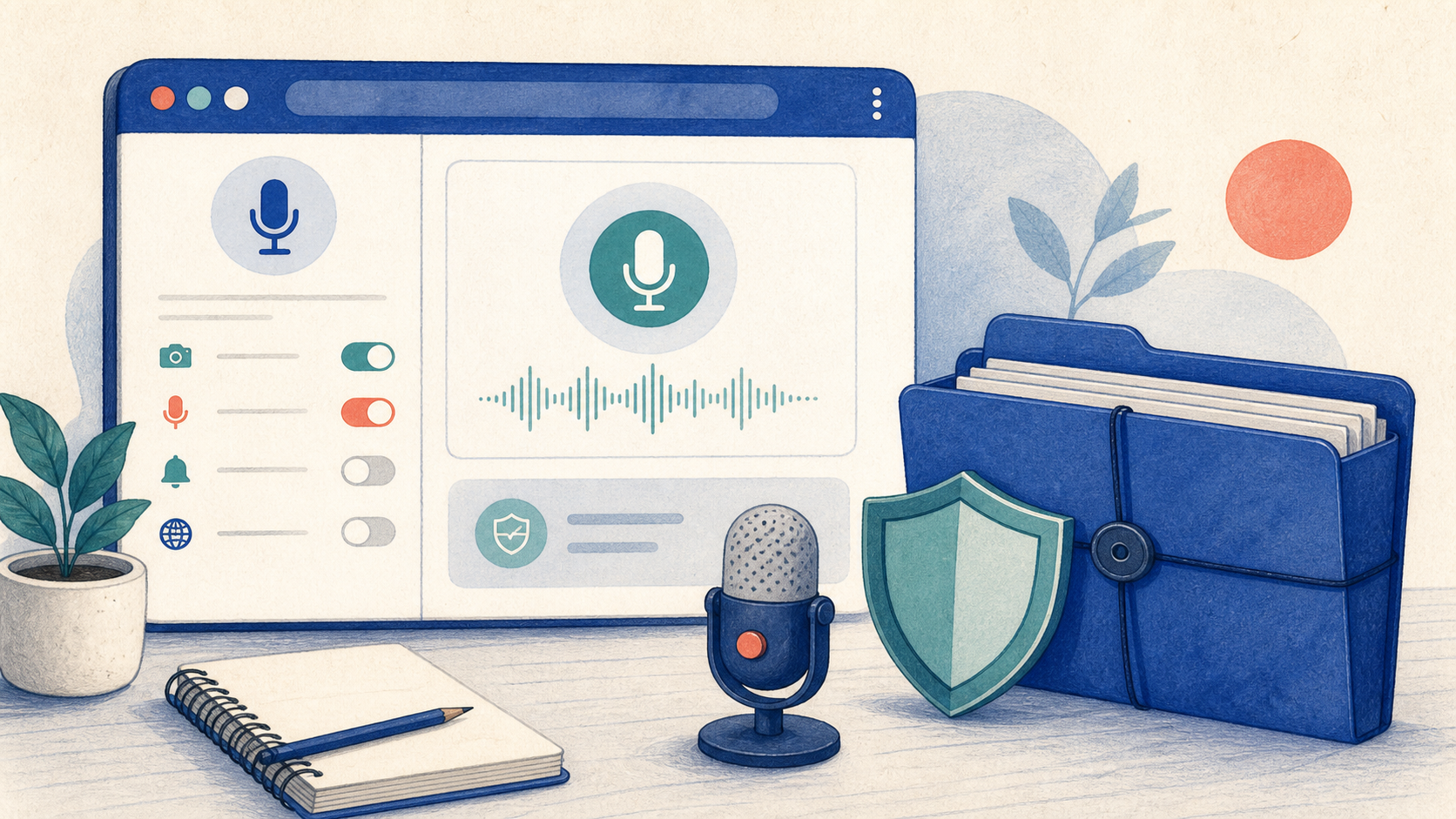
Tell the instructor and classmates when recording or transcription is active, and follow the course rules. When class ends, stop recording promptly and give the saved transcript a title with the course, lesson topic, and date. This small habit makes history useful when you need to find a concept before an assignment or exam.
Turn an online-class transcript into review notes
Start by correcting the words that carry meaning: names, dates, equations, vocabulary, and references to readings. Then create a concise summary organized around the lesson objectives. Ask for a short list of concepts, examples, and unresolved questions rather than a paragraph that repeats the entire class. Keep the original transcript beside the generated notes so you can trace an explanation back to its context.
Finish with active recall. Turn each heading into a question, answer it without looking, and return to the transcript only when your explanation is incomplete. Add reminders for slides, diagrams, or demonstrations that audio cannot preserve. The result is a practical online-class archive: searchable source text, focused notes, and a review routine you can repeat each week.
A weekly online-class review loop
At the end of each lesson, keep three layers together: the original transcript, a short set of notes, and a list of questions you still need to answer. Search the transcript for the terms that appeared in the learning objective and compare the result with the instructor’s slides or reading. If the class included a diagram or demonstration, link to that visual source because audio recognition cannot preserve every part of it. This routine makes the extension useful across a semester instead of producing isolated files that are hard to revisit.
Use the same title pattern for every class—course, topic, and date—and correct recurring vocabulary once it appears. During weekly review, combine related transcripts into a compact outline and remove duplicate exports. Keep the full text available for verification, but study from questions and examples rather than replaying every sentence. A consistent archive helps you find the right explanation before an assignment while keeping active learning at the center.
A dependable routine for real work
The most useful way to apply speech-to-text chrome extension for online classes is to keep the workflow small and observable. Start with a short test, confirm that the words on screen match the speaker, and decide what the final reader actually needs. A raw transcript, cleaned copy, summary, table, or question-and-answer page each serves a different purpose. Choosing one outcome before you process a long recording saves time and makes quality easier to judge.
Keep a human checkpoint between recognition and action. Listen again when a name, number, quotation, deadline, or safety instruction matters. Mark uncertainty instead of allowing a fluent sentence to hide it, and compare an AI-created result with the source before publishing or sending it. Automatic tools are excellent at reducing repetitive work, but they cannot know which detail is most consequential in your context.
A clear archive also improves future work. Use descriptive titles, the spoken language, and the project or course name so search can surface the right conversation months later. Store links to related documents when audio cannot preserve a diagram, screen, or formula. Delete temporary exports and old copies when they no longer serve the task, especially when the material contains information about other people.
Finally, review the result with the person who will use it. Ask whether the summary answers the question, whether actions have real owners, and whether the tone fits the audience. Feed that feedback into the next custom instruction rather than adding more words by default. A repeatable capture–review–share loop is what turns speech-to-text into dependable work.
Put the workflow into practice
Open GG Transcript in Chrome, choose the input and language that fit your task, and begin with a short test recording. Read the step-by-step setup guide, compare plan features, and review the Privacy Policy before recording sensitive material.
Add GG Transcript to Chrome→