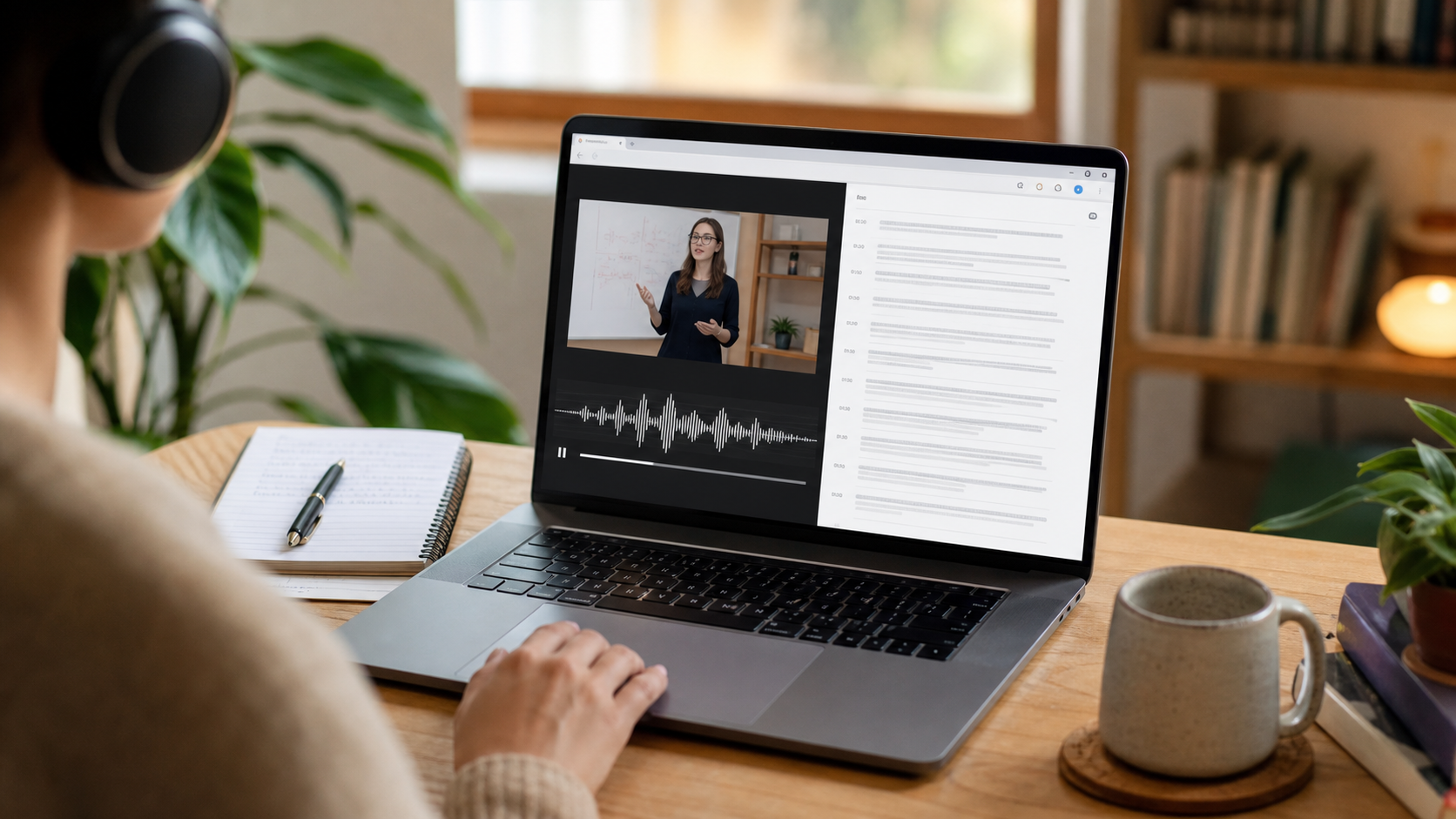
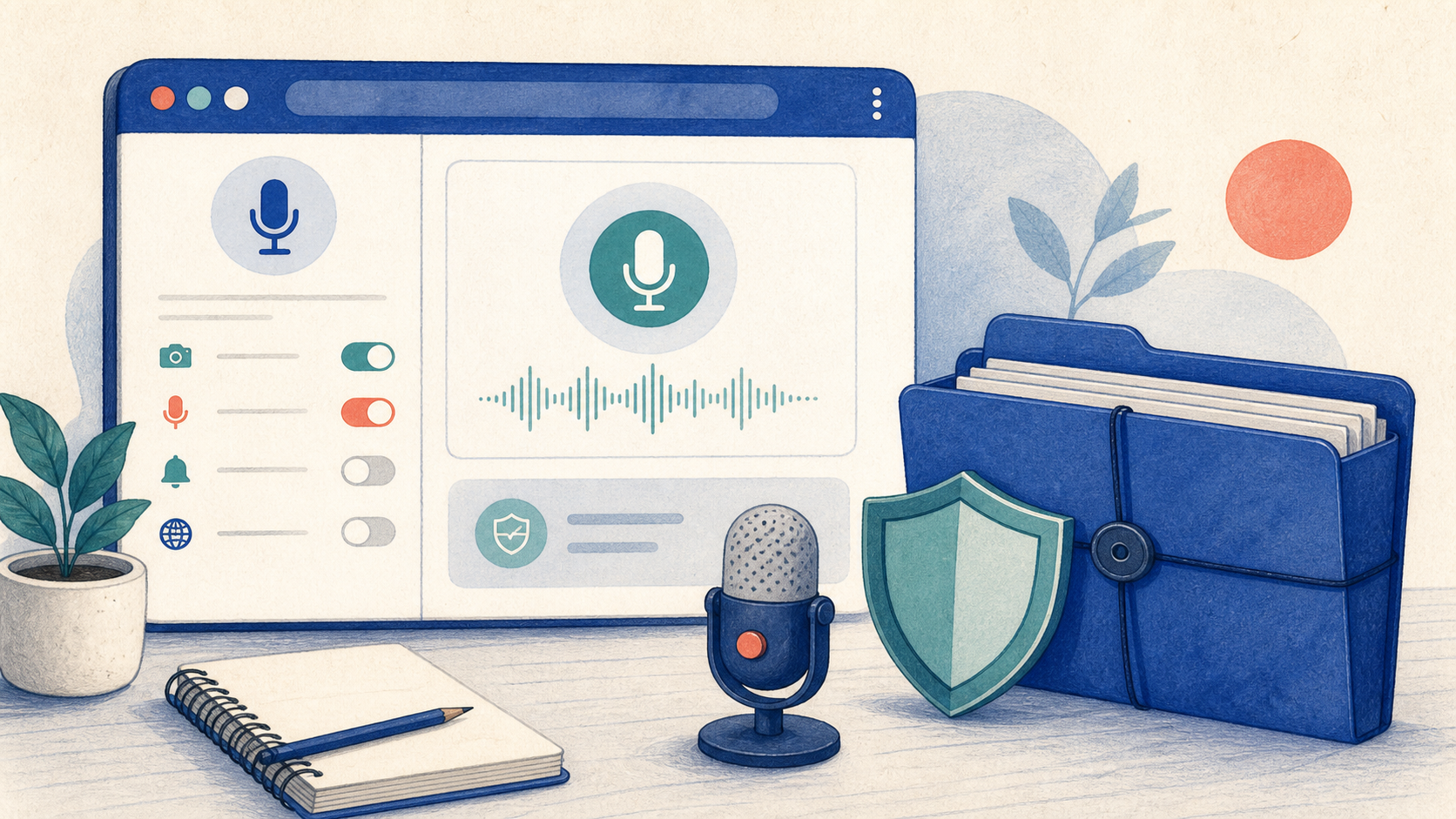
 GG Transcript
Turn a Chrome Transcript into Notes
The fastest note workflow is not to summarize everything. It is to preserve the source, choose a purpose, and organize only the information you need.
 Harry Vu Le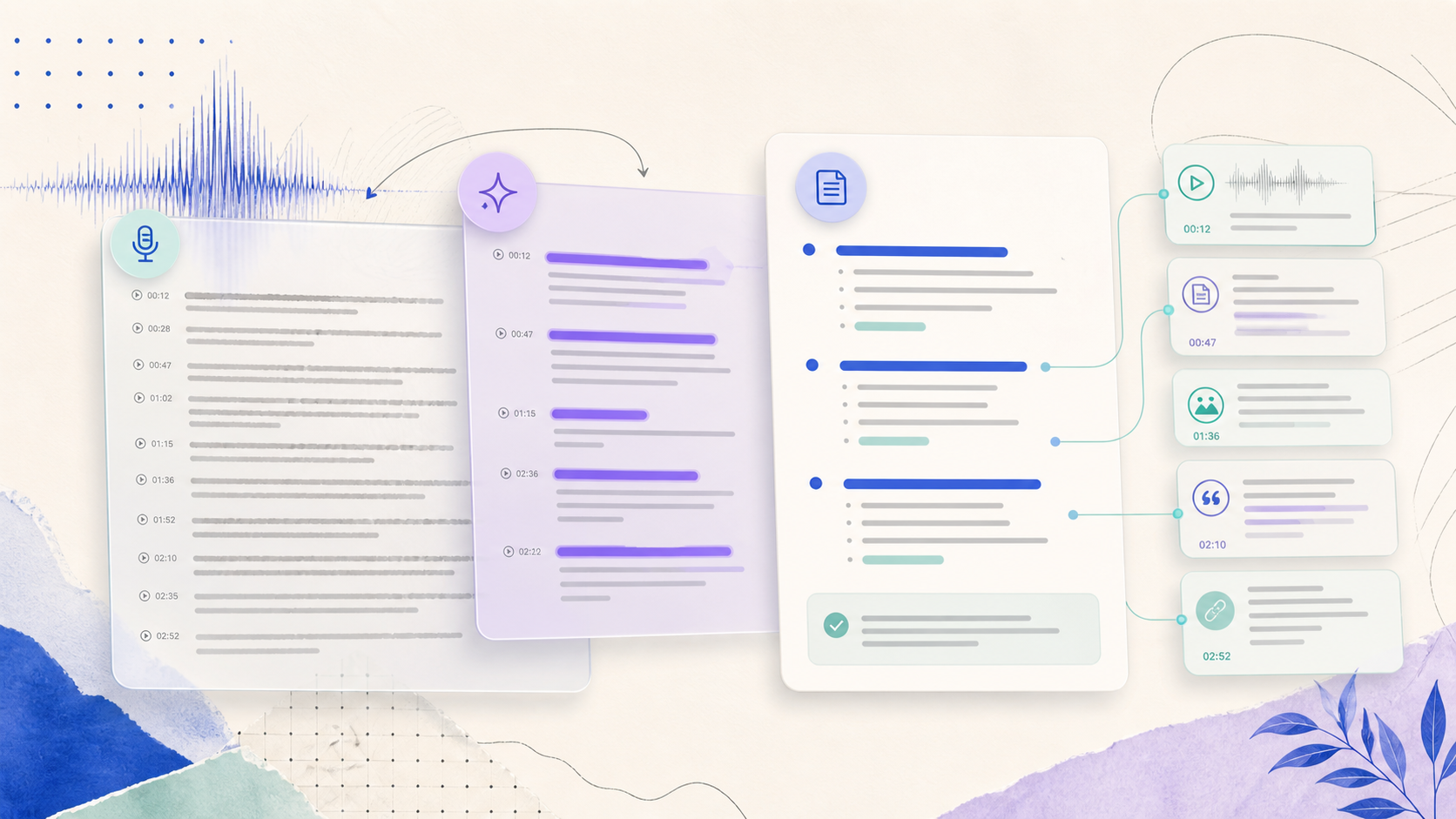
Learn how to clean a Chrome extension transcript, identify key points, create concise notes, and keep the source available for verification.
Choose the purpose before converting a transcript
A Chrome extension transcript can become meeting notes, study notes, a project brief, or an action list, but those outputs are not interchangeable. Before you generate anything, decide who will use the notes and what they need to do next. A student may need definitions and examples; a project team may need decisions, owners, and deadlines. This decision prevents a long transcript from turning into another long document.
Keep the raw or live transcript as the source layer. Correct obvious recognition errors and label speakers when identity changes the meaning. Then select the output format that matches your purpose. Curated Transcript preserves more detail, Meeting Summary emphasizes discussion and decisions, and Action Items should focus on commitments rather than every topic mentioned.
Clean, organize, and verify the notes
Start by grouping related statements under clear headings. Remove greetings, repeated phrases, and false starts unless they reveal uncertainty that matters. Convert vague references such as 'next week' into exact dates only when the transcript provides enough context. Never let an AI output invent an owner, deadline, quotation, or conclusion that the source does not support.
Compare each important note with the transcript. Names, numbers, legal terms, medical claims, and financial details require especially careful review. If the output is unclear, use a narrower custom instruction such as 'List only decisions explicitly stated in the transcript and quote the supporting sentence.' A focused request produces notes that are easier to audit than a broad request for everything important.
Store notes so they remain useful
Give the saved recording a title that includes the topic and date. Pin a frequently used output when your plan supports it, and download only when you need an external copy. Keep the transcript and notes together so future readers can distinguish the original speech from the organized interpretation. This is particularly important when notes are shared with people who did not attend the conversation.
A repeatable transcript-to-notes workflow has four steps: capture, correct, organize, and verify. The Chrome extension reduces friction between those steps, while the user supplies context and judgment. When the process ends with a clear next action and a traceable source, the notes become a dependable working document instead of a disposable summary.
Design a note template around the next decision
A reusable template makes transcript-to-notes work faster because it defines what to keep before the conversation starts. For meetings, use sections for context, decisions, owners, deadlines, and unresolved questions. For research, use claims, evidence, quotations, and follow-up sources. For a spoken draft, use the central idea, supporting points, counterarguments, and next edits. A custom AI instruction can propose this structure, but the person responsible for the work should decide which fields are meaningful and verify that the output has not filled an empty field with an assumption.
After the notes are complete, test whether another person could act on them without hearing the recording. Replace vague pronouns, clarify which team or project a task belongs to, and state when a date was not agreed. Keep links to the original transcript for high-impact decisions. This small editorial pass separates useful notes from attractive-looking text. It also makes later search more reliable because names, topics, and actions use consistent wording across saved conversations.
A repeatable transcript-to-notes checklist
Choose the note format before recording: meeting decisions, research evidence, project actions, or personal ideas. Test the input, title the session clearly, and keep a small list of terms or names that must be spelled correctly. After transcription, remove obvious recognition errors and separate direct statements from your interpretation. Only then ask for the structured output that matches the next task.
Review the finished notes as if you had not attended the conversation. Clarify references such as “that,” “next week,” or “the client,” and identify missing owners or dates instead of inventing them. Link the notes to the transcript when decisions may need verification. This short editorial check makes the saved result more useful to teammates and more dependable in later search.
A dependable routine for real work
The most useful way to apply turn a chrome transcript into notes is to keep the workflow small and observable. Start with a short test, confirm that the words on screen match the speaker, and decide what the final reader actually needs. A raw transcript, cleaned copy, summary, table, or question-and-answer page each serves a different purpose. Choosing one outcome before you process a long recording saves time and makes quality easier to judge.
Keep a human checkpoint between recognition and action. Listen again when a name, number, quotation, deadline, or safety instruction matters. Mark uncertainty instead of allowing a fluent sentence to hide it, and compare an AI-created result with the source before publishing or sending it. Automatic tools are excellent at reducing repetitive work, but they cannot know which detail is most consequential in your context.
A clear archive also improves future work. Use descriptive titles, the spoken language, and the project or course name so search can surface the right conversation months later. Store links to related documents when audio cannot preserve a diagram, screen, or formula. Delete temporary exports and old copies when they no longer serve the task, especially when the material contains information about other people.
Finally, review the result with the person who will use it. Ask whether the summary answers the question, whether actions have real owners, and whether the tone fits the audience. Feed that feedback into the next custom instruction rather than adding more words by default. A repeatable capture–review–share loop is what turns speech-to-text into dependable work.
Put the workflow into practice
Open GG Transcript in Chrome, choose the input and language that fit your task, and begin with a short test recording. Read the step-by-step setup guide, compare plan features, and review the Privacy Policy before recording sensitive material.
Add GG Transcript to Chrome→