 GG Transcript
Live Transcription Chrome Extension
Follow speech as readable text in Chrome, then keep a searchable transcript you can verify and reuse after the conversation.
 Harry Vu Le
Use a live transcription Chrome extension for real-time speech to text. Learn setup, microphone permissions, accuracy tips, languages, and practical use cases.
How live transcription works in Chrome
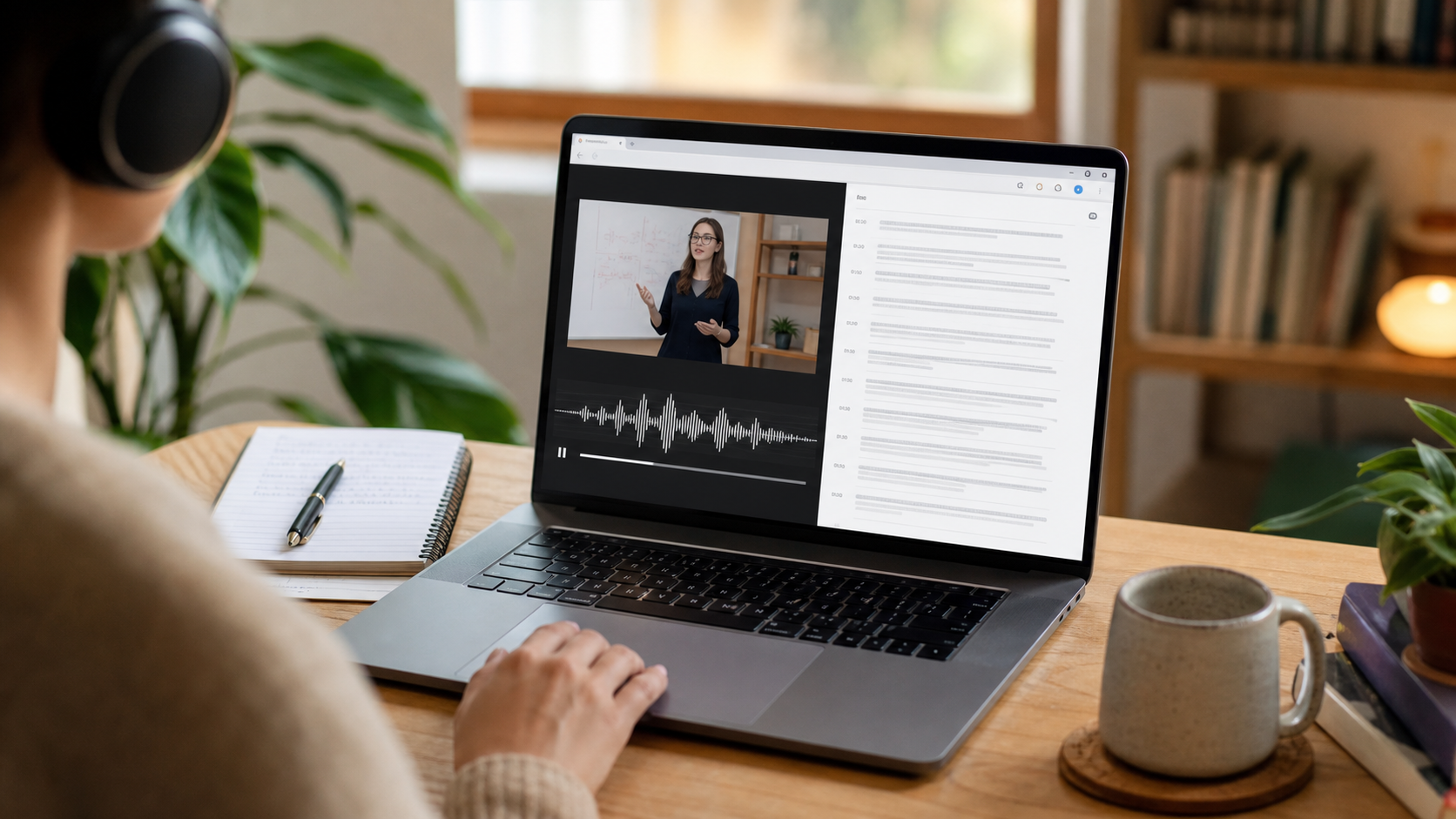
A live transcription Chrome extension listens to an approved audio input and converts recognized speech into text while the conversation continues. In GG Transcript, WebSpeech can display words during recording when Chrome supports recognition for the selected language and context. The visible transcript helps users follow lectures, meetings, interviews, and spoken drafts without switching to a separate application.
Live text is provisional. Recognition may revise a phrase after hearing more context, and punctuation can vary by browser support. Speaker overlap, background music, distant microphones, and fast speech all reduce accuracy. Treat the live view as a helpful working aid, then review the saved result before quoting, publishing, or making a decision from it.
Set up live transcription in Chrome
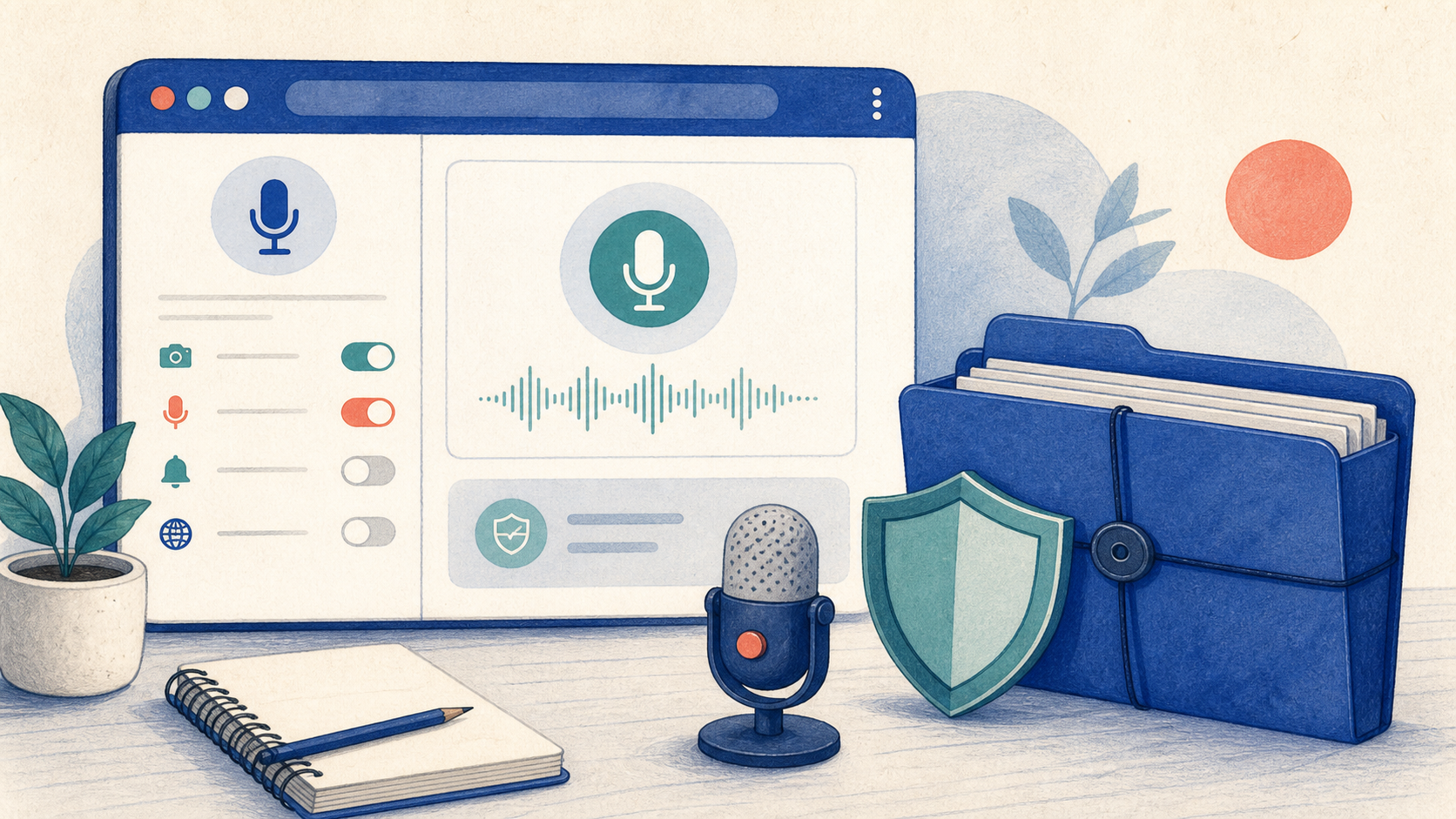
Open GG Transcript, choose WebSpeech, select the spoken language, and confirm the microphone input. Press Record and allow microphone access if Chrome asks. Speak a short test sentence and verify that words appear. If recording cannot start, move to a normal web page, check the extension's microphone permission, reload the extension after an update, and try again. Chrome blocks extension interaction on some protected pages such as browser settings and the Chrome Web Store.
For better results, use a headset or dedicated microphone, keep it close to the speaker, and reduce room echo. Select the actual language being spoken rather than a similar locale. Pause briefly between ideas and avoid speaking over another person. These practical changes often improve a live transcript more than repeated software adjustments.
Use live transcripts responsibly
Tell participants when transcription is active and obtain any permission required by law or policy. Do not assume a live transcription tool is appropriate for confidential, regulated, or emergency communication. Accessibility needs also vary: automatic captions can support comprehension, but they are not a guaranteed replacement for professional captioning or an agreed accommodation.
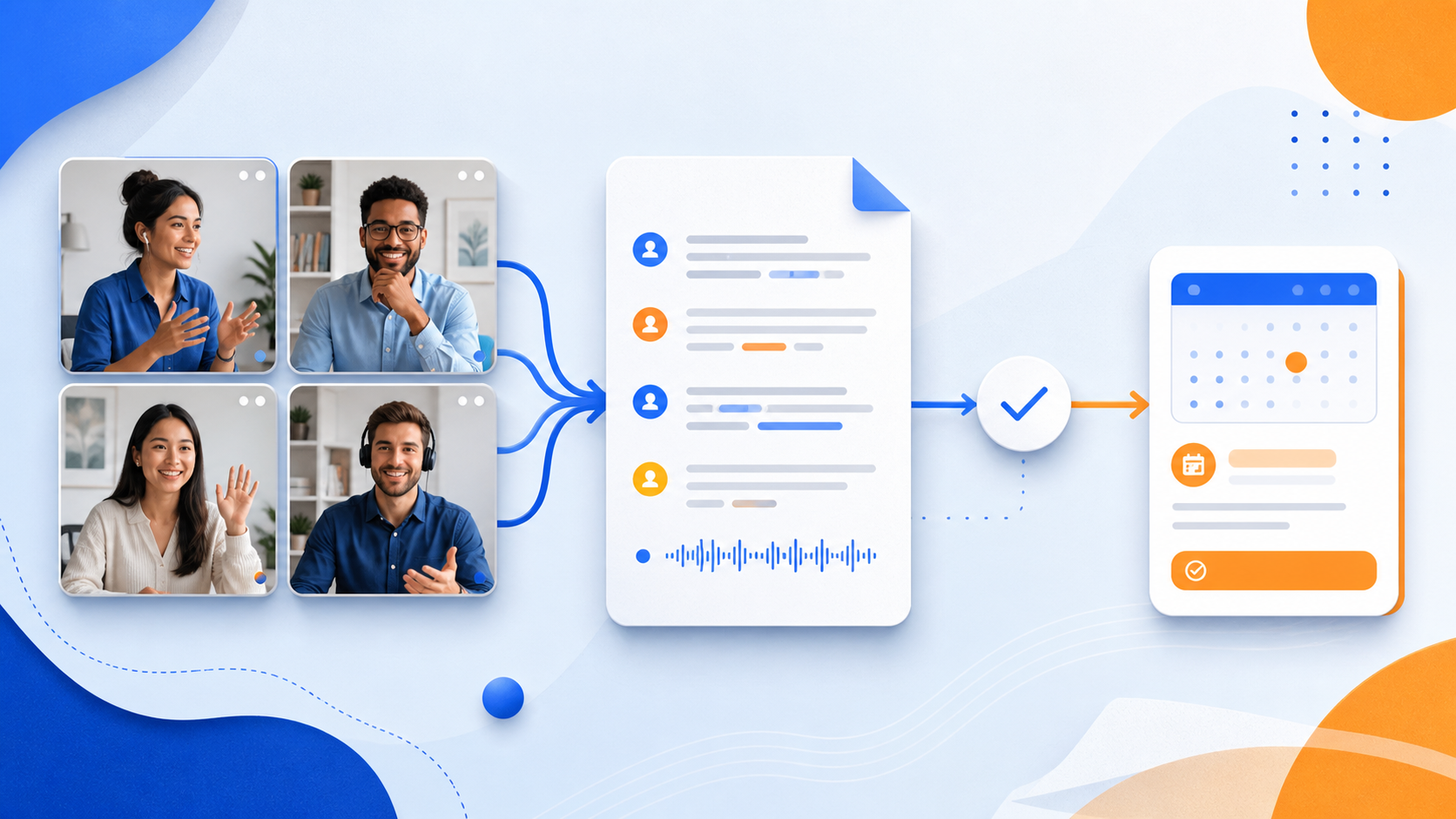
After recording, correct important names and facts, then choose whether the result should remain in history. A meeting can become action items; a lecture can become study notes; a spoken idea can become a curated draft. The best live transcription Chrome extension workflow connects immediate visibility with later verification, making speech easier to review without pretending automatic text is flawless.
Know when live text is helpful—and when it is not enough
Live text can reduce the effort of following a fast explanation, support a second-language listener, or give a speaker immediate feedback while drafting. It can also distract if every small recognition change pulls attention away from the conversation. Place the panel where it is readable without covering the primary work, and use it as a reference rather than watching every word appear. For a formal record, accessibility accommodation, legal proceeding, or safety-critical exchange, automatic transcription may not provide the accuracy, speaker labeling, or human review the situation requires.
Once the live session ends, the task changes from monitoring to verification. Read the saved transcript in larger sections so context is visible, correct critical details, and decide whether an AI output would genuinely save time. A short personal note may need no processing. A project call may benefit from action items and a follow-up email. Choosing the smallest useful output keeps the workflow fast and reduces the chance that a polished format hides a transcription mistake.
A live-transcription checklist
Place the transcript where it supports the task without covering the document, call, or presentation you need to see. Select the language deliberately and speak a short test phrase before the real session begins. During recording, watch for a responsive input indicator rather than reading every interim word. If the source changes language or microphone, stop and start a new session so the settings and saved context remain clear.
When the session ends, correct critical terminology before copying or exporting. Decide whether raw text is sufficient or whether a summary, email, or action list will actually help. Save a descriptive title and remove recordings you no longer need. The best live transcription workflow reduces attention cost during the conversation and leaves a concise, verifiable result afterward.
A dependable routine for real work
The most useful way to apply live transcription chrome extension is to keep the workflow small and observable. Start with a short test, confirm that the words on screen match the speaker, and decide what the final reader actually needs. A raw transcript, cleaned copy, summary, table, or question-and-answer page each serves a different purpose. Choosing one outcome before you process a long recording saves time and makes quality easier to judge.
Keep a human checkpoint between recognition and action. Listen again when a name, number, quotation, deadline, or safety instruction matters. Mark uncertainty instead of allowing a fluent sentence to hide it, and compare an AI-created result with the source before publishing or sending it. Automatic tools are excellent at reducing repetitive work, but they cannot know which detail is most consequential in your context.
A clear archive also improves future work. Use descriptive titles, the spoken language, and the project or course name so search can surface the right conversation months later. Store links to related documents when audio cannot preserve a diagram, screen, or formula. Delete temporary exports and old copies when they no longer serve the task, especially when the material contains information about other people.
Finally, review the result with the person who will use it. Ask whether the summary answers the question, whether actions have real owners, and whether the tone fits the audience. Feed that feedback into the next custom instruction rather than adding more words by default. A repeatable capture–review–share loop is what turns speech-to-text into dependable work.
Put the workflow into practice
Open GG Transcript in Chrome, choose the input and language that fit your task, and begin with a short test recording. Read the step-by-step setup guide, compare plan features, and review the Privacy Policy before recording sensitive material.
Add GG Transcript to Chrome→