 GG Transcript
Google Meet vs Zoom Transcription Workflow
Use one accountable meeting-transcription process across platforms while keeping each call, decision, and follow-up clearly separated.
 Harry Vu Le
Compare a consistent transcription workflow across Google Meet and Zoom, including consent, audio checks, review, decisions, and team follow-up.
Use the same preparation for Meet and Zoom
Before you transcribe a Google Meet or Zoom conversation, tell participants what will be captured, why it is needed, and who can access the result. Follow company policy, local recording laws, and the meeting host's controls. A clear notice builds trust and gives people a chance to raise concerns before the microphone is active.
Open GG Transcript, select the spoken language, and test the microphone or supported audio input. Ask one speaker to say a name, date, and project term so you can check recognition quality. If the input is distant or echoing, move closer to the source or use a better microphone before the agenda begins.
Keep the live transcript focused during the call
A live transcript should support the meeting rather than become another screen to monitor constantly. Keep the extension in a position that does not cover the call or shared document. Note topic changes, decisions, and questions in your own shorthand, then use the transcript to fill in exact wording afterward. Clear speech, stable input, and one language at a time usually produce more reliable text than changing settings mid-call.
If several people speak at once, expect gaps and plan a review. Do not treat an unfinished sentence as a confirmed decision. The transcript is an aid for memory and retrieval; the meeting participants remain responsible for confirming what was actually agreed.
Turn the meeting transcript into accountable follow-up
After the call, correct names, numbers, decisions, owners, and deadlines before generating a summary. Ask the AI output for only the decisions, action items, and open questions explicitly supported by the transcript. If a deadline or owner was not confirmed, label it as tentative instead of filling the gap with an assumption.
Send a compact follow-up that people can act on, and keep the complete transcript available only to the appropriate audience. Use a consistent title with the project and date so history remains searchable. A Chrome extension can reduce the typing burden, but consent, accuracy, access, and retention still need a human owner.
Make the transcript a bridge to action
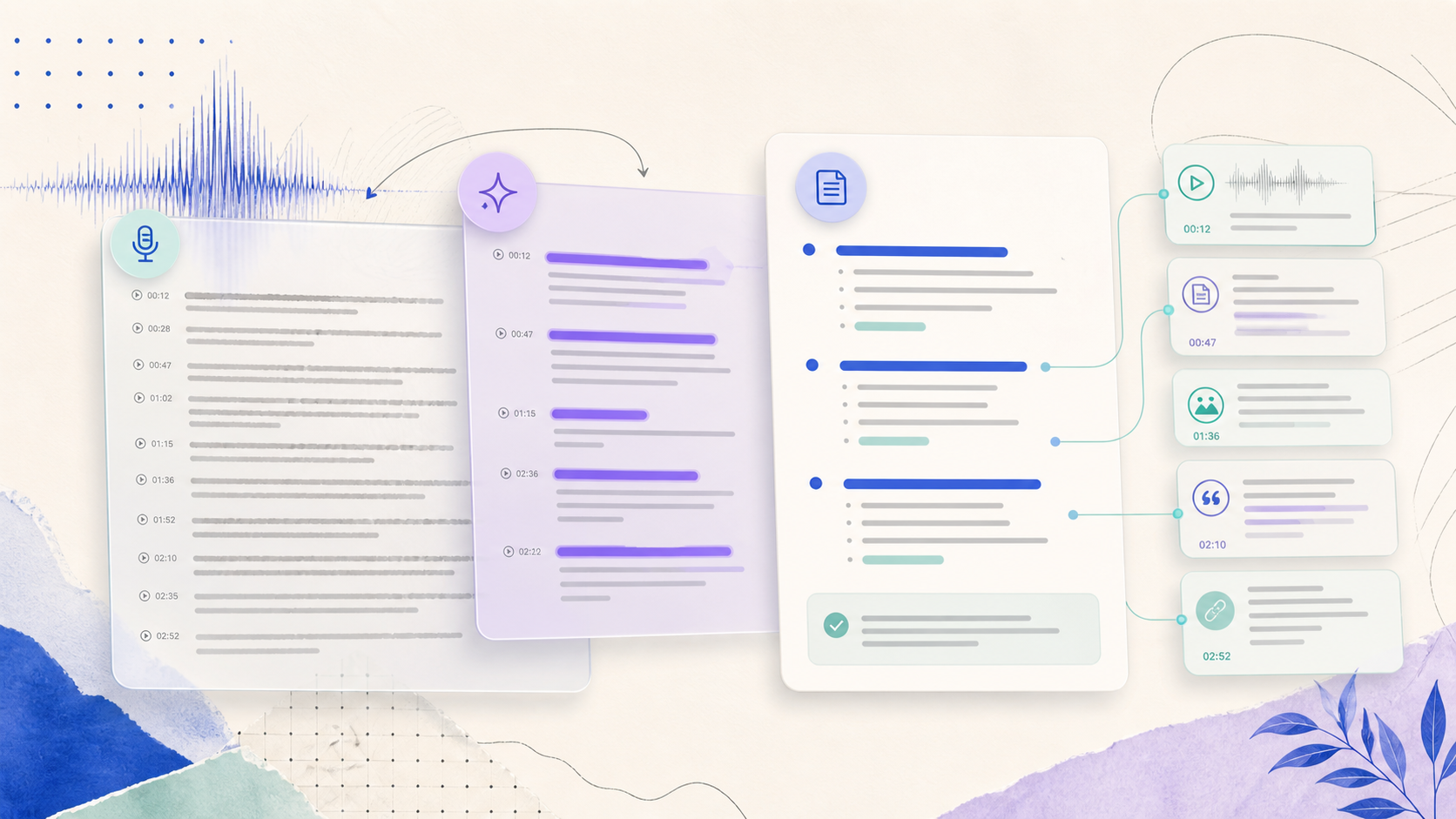
A meeting transcript earns its place when it helps people act. After correcting the source, ask for a compact structure with context, explicit decisions, assigned actions, and unresolved questions. Link each important item to the relevant passage so someone can verify it without replaying the whole call. If the conversation did not settle a detail, preserve that uncertainty instead of presenting a confident guess as the team’s agreement.
Use a consistent title with the project, purpose, and date, then keep access limited to the people who need the record. At the next meeting, review the previous action list before creating another summary. This creates a visible loop from speech to responsibility and makes the Chrome extension useful beyond the moment of capture.
A dependable routine for real work
The most useful way to apply google meet vs zoom transcription workflow is to keep the workflow small and observable. Start with a short test, confirm that the words on screen match the speaker, and decide what the final reader actually needs. A raw transcript, cleaned copy, summary, table, or question-and-answer page each serves a different purpose. Choosing one outcome before you process a long recording saves time and makes quality easier to judge.
Keep a human checkpoint between recognition and action. Listen again when a name, number, quotation, deadline, or safety instruction matters. Mark uncertainty instead of allowing a fluent sentence to hide it, and compare an AI-created result with the source before publishing or sending it. Automatic tools are excellent at reducing repetitive work, but they cannot know which detail is most consequential in your context.
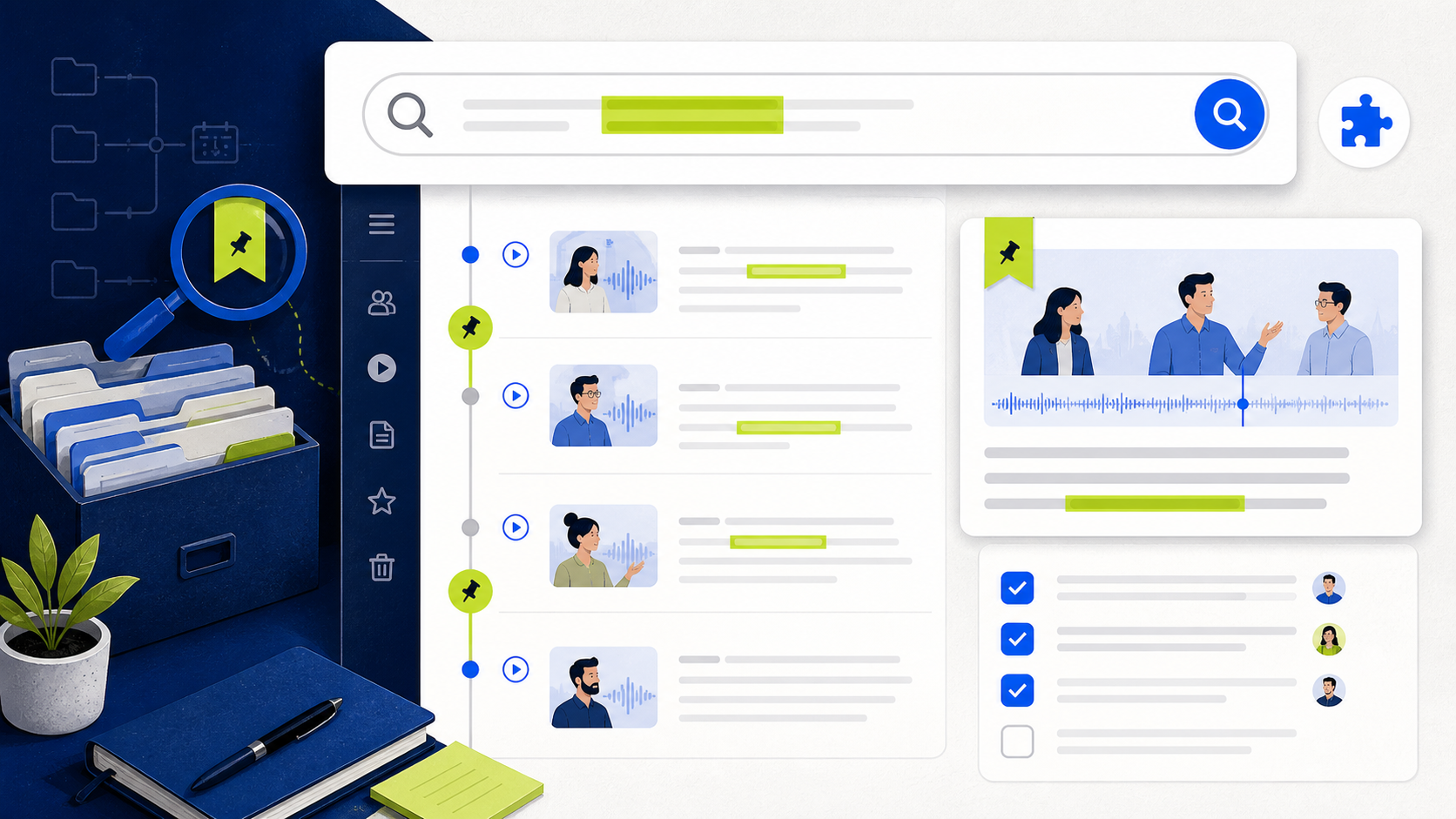
A clear archive also improves future work. Use descriptive titles, the spoken language, and the project or course name so search can surface the right conversation months later. Store links to related documents when audio cannot preserve a diagram, screen, or formula. Delete temporary exports and old copies when they no longer serve the task, especially when the material contains information about other people.
Finally, review the result with the person who will use it. Ask whether the summary answers the question, whether actions have real owners, and whether the tone fits the audience. Feed that feedback into the next custom instruction rather than adding more words by default. A repeatable capture–review–share loop is what turns speech-to-text into dependable work.
Handle two meeting platforms without losing context
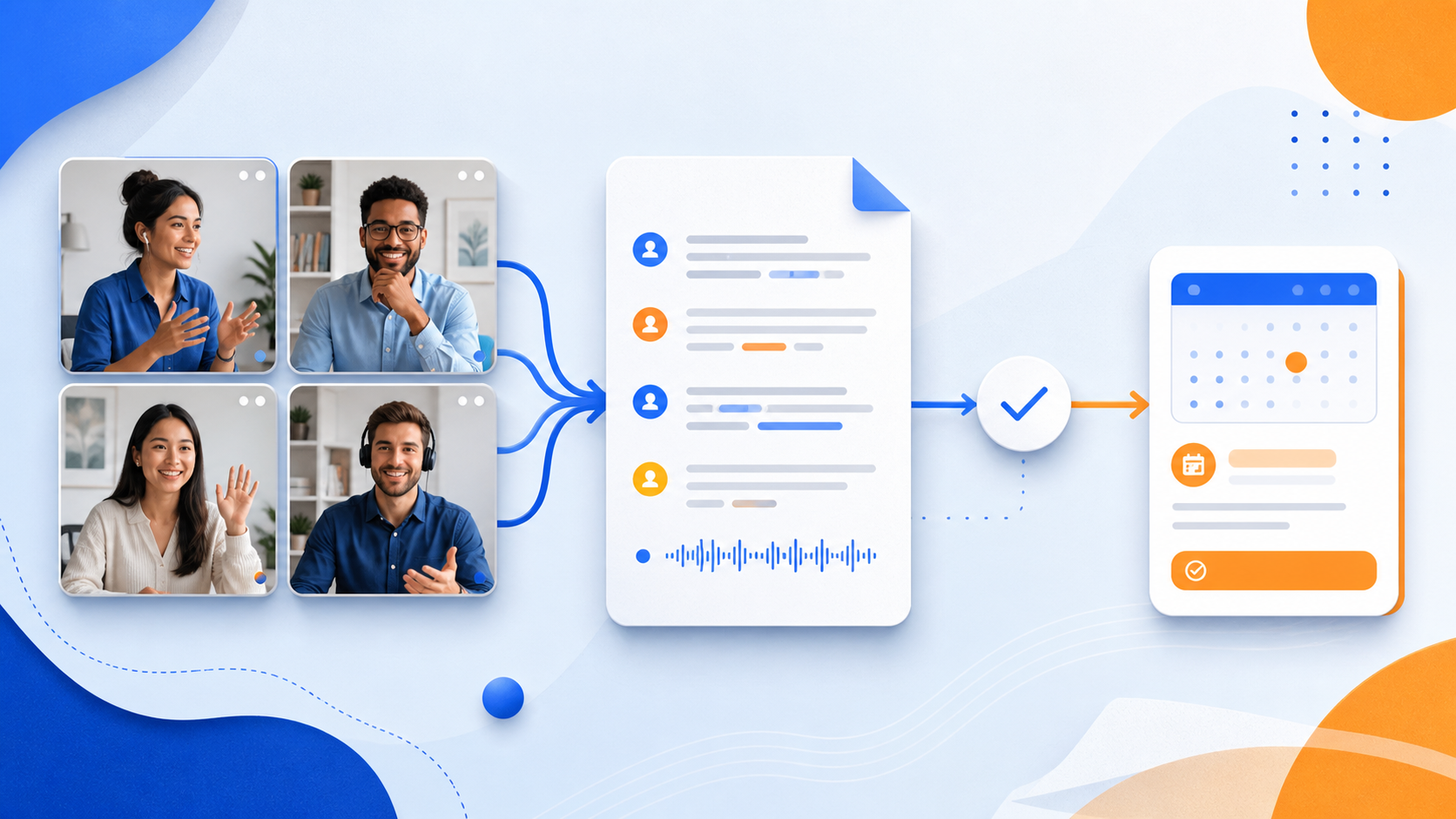
Google Meet and Zoom can appear in the same project, but a dependable transcription habit should remain consistent across both. Before a call, record the platform, project, participant group, spoken language, and reason for capture in the title or project notes. Confirm consent and organization rules before recording. Afterward, keep the transcript alongside the agenda, shared documents, and final action list so a future reader can understand both what was said and why the conversation took place.
Avoid combining separate calls into one undifferentiated transcript just because they concern a similar topic. Clear boundaries make ownership, dates, and follow-up easier to verify. When a phrase is unclear, return to the relevant recording or ask the speaker to confirm rather than letting an automated summary decide its meaning. This preserves the value of a searchable meeting archive while respecting the practical limits of speech recognition.
Put the workflow into practice
Open GG Transcript in Chrome, choose the input and language that fit your task, and begin with a short test recording. Read the step-by-step setup guide, compare plan features, and review the Privacy Policy before recording sensitive material.
Add GG Transcript to Chrome→